Features
General Informations
- Azyrah offers you a wide range of features to make your gaming experience as enjoyable as possible.
- All conveniences can be used by every player without restrictions, without the need to access the Itemshop.
Features

There are 2 ways to access our toolbar.
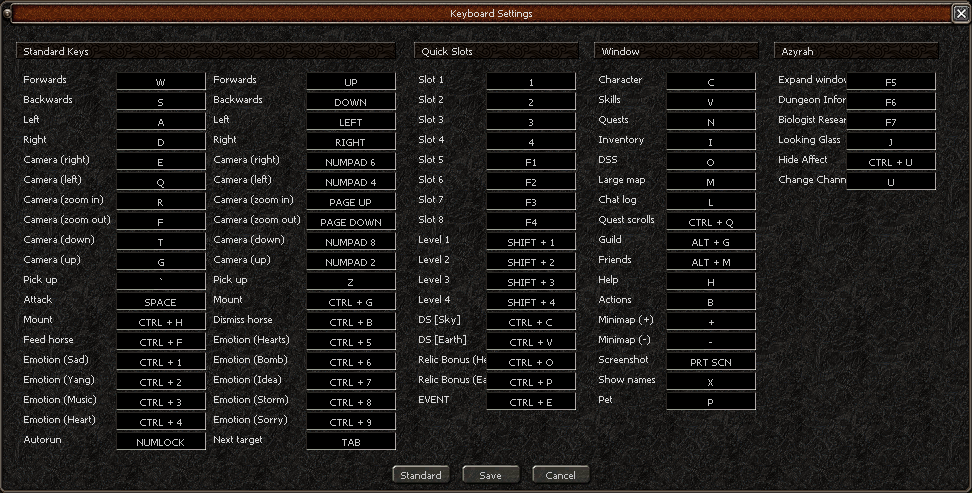
- You press the "F5" key on your keyboard.
- You press the button between "4" and "F1" on your skill bar.
Another menu will open on top over your skillbar.
Toolbar

- Via left-click you can open and close every feature option.
- In this Toolbar you can find the following Features: (sorted from left to right)
- Patchnotes
- Pet Information
- Switchbot
- Looking Glass
- Drop Search of Items
- Biologist Research
- Dungeon Information
Patchnotes
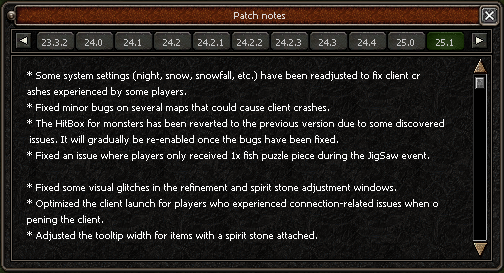
Here you can find all changes around Azyrah, you can see changes, bugfixes, optimizations and much more.
- They are sorted from low numbers up to high numbers.
- The highest number is the last patch.
- Its important to check the patchnotes frequently to stay updated and adjust your playstyle.
- If you figured out a bug on Azyrah click here, and as soon as possible it will appear as Bugfix on our Patchnotes. (Discord Account needed)
Pet Info
To access pet user interface you can press "P" on your keyboard or by pressing "F5" to open the shortcut hotbar and clicking on the  'Pet Info' Button.
Here you can find additional Information about our Pet System.
'Pet Info' Button.
Here you can find additional Information about our Pet System.
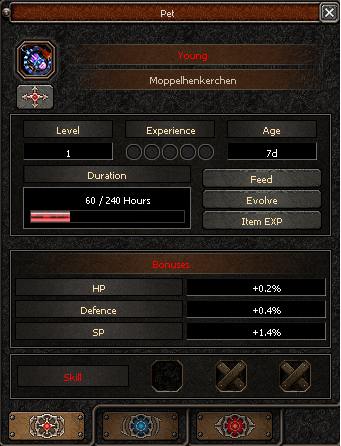
Icon: Top left, shows the icon of the seal.
Identify Pet Button: Top left, allows you to see what pet type the summoned pet is.
1st Line: Shows Pet Stage (Young, Wild, Valiant, Heroic)
2nd Line: Pet Name
Level: Shows pet current level (pets can reach a maximum level of 105).
Experience: Shows the amount of experience the pet has.
Age: Shows how old the pet is.
Duration: The red bar shows how much time the pet has left, it refills when pet is feeded.
Feed: Button that opens the feeding window.
Evolve: Button that opens the evolve window.
Item EXP: Button that opens the window that allows pet to consume gear in order to fill the last 10% EXP of each level.
Bonuses: Bonus given by pet when active.
HP Gives more HP to player
Defense Gives more defense to player
SP Gives more SP to player
Bonuses percentages increase randomly with stage, age and level of pet.
Skill: Pets can have up to 3 skills, Pets can only learn skills once they're evolved to Heroic.
Tabs: 1st Tab is the normal pet interface, 2nd Tab is the Enchant Pet UI, 3rd Tab is the Pet Revive Interface
Switchbot
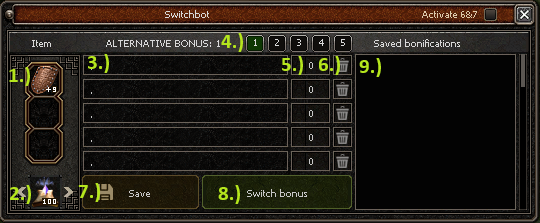
- Item-Slot: Place the item, you want to change the bonus.
- Enchant-Slot: Place the right enchant for the right item.
- Bonus-Slot: By clicking on the column you can chose between all bonuses wich are avaiable on this item. You have 5 columns for the first 5 bonus.
- Alternative-Bonus: Here you can create alternative bonus, wich may max your chances you get the bonus you want.
- Value-Slot: Here you can choose the value of the bonus you choosed.
- Delete: By clicking on this icon, the column will be deleted.
- Save-Option: If you created a bonus page, you want to use repetitive, we gave you the option to save the bonus page. Tipp:
- Switch-Bonus: If you have selected all your bonus and value`s you can click "Switch bonus" to start the switching prozess.
- Saved-Bonificatons: Here you can find your saved bonus pages.
Notice:
- You can also change your 6th / 7th Bonuses. (by setting a tick on the top/right corner "Active 6th / 7th")
- You can also change costumes.
Looking Glass
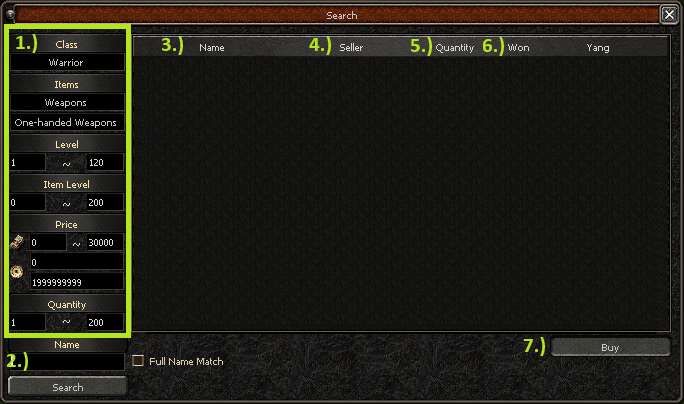
- Item-Filter: Here you can set up a filter to find the right items you need.
- Search-by-name: Through the search function, items are suggested to you that are compiled based on the initial letters you typed in
- Name: In this column you can see the name of the item.
- Seller: Here you can see the name of the seller. Tipp: Sometimes on expensive items, its worth a try to get in contact with the seller and make him an offer.
- Quantity: Will show you the amount of items you will buy.
- Price: Will show you the price of the item in won and yang.
- Instant-Buy with Trading Glass (7 days) from Itemshop or Gaya Market, allows you to buy items instantly without searching the shop.


Drop searcher of items
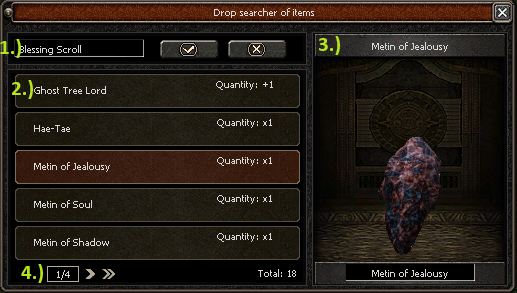
- Search-column: Type here the item name you need to know, where to drop.
- Monsters: List of monsters, bosses and metin-stones wich drops the item + amount you will drop from this item.
- Preview: By left-clicking on the monster you will recieve a preview of the mob, you need to hunt.
- Pages: Here you can swap trough the pages by clicking on the arrow-signs.
Biologist Research
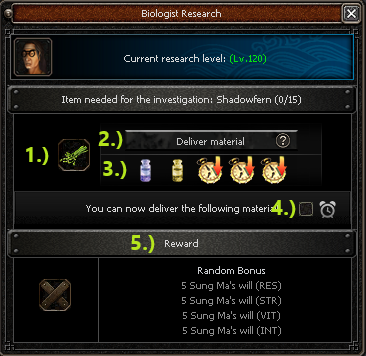
You can open the BiologistUI via shortcut "F7" aswell. Here you can find more about the Biology-System.
- Needed-Item: This icon shows you what item is needed.
- Deliver-Button: by left-clicking this button you can deliver the item to the biologist.
- Boosting-Items: Here you can see what items, could help you to proceed the quest faster.
- Notification: by activating the bell you will recieve a notification as soon as the research is finished.
- Reward: Here you can find your rewards.
Dungeon Information
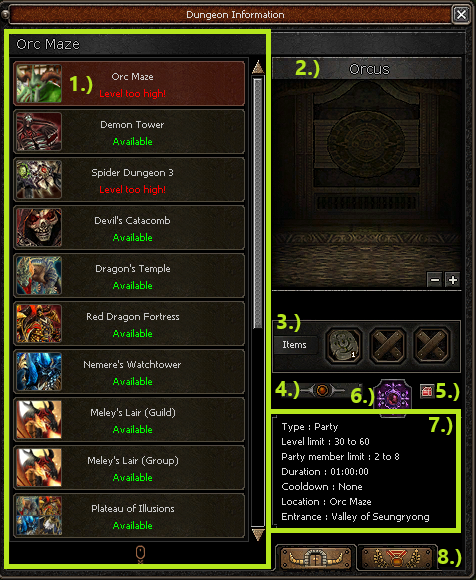
- Cooldown-Timer: List of Dungeons with live cooldown.
- Preview: By left-cklicking on a Dungeon you will recieve a preview of the dungeon-boss.
- Entrance-Item: Shows you the needed item to get the entrance to the dungeon.
- Teleport-Button: By left-clicking the button you will get teleported to the entrance.
- Rewards: By left-clicking on the button, the rewards will be shown to you.
- Element: Shows you the elemental of the run.
- Dungeon-Details:Here you can find details like about the run.
- Ranking: by left-clicking it will show you the amount of completed dungeons, your fastes time and your highest damage.
Loot Filter
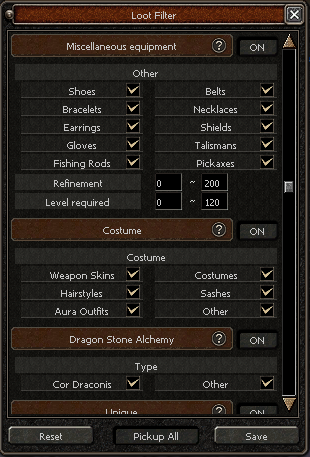
- By pressing the 'ESC' key on your keyboard, you will gain access to our loot filter.
- Here, you can precisely determine which items you want to pick up and which you'd rather leave behind.
- You can sort your selection by equipment.
- You can sort your selection on different classes.
- You can also adjust your selection based on item level.
- After you changed your loot configurations its imporant to save configurations.
- You can also deactivate eventdrops here.
Good to know:
If you lose Items due to negative rank, and you cant pick them up, check your loot filter !
Keyboard Layout
If you press "Esc" on your Keyboard and click on "Game Option" and you have the option to change your key-binding Ingame.
- If you changed a binding you need to "Save" the option.
- If you want to return your settings you can click on "Standart".